 Veldverb
Your IR.
Your finished WAVs.
Bring local audio and an impulse response. Set the mix, render a batch, listen to the result and hand off the files with the settings that made them.
See the workflowOne-time purchase · US base price $4.99
No subscription, account or in-app purchases.
A local audio workflow.
Your source. Your impulse.
Keep up to six source clips in a saved job. Import one mono or stereo IR from Files, then choose wet mix, pre-delay, output gain, peak normalization and tail handling.
Hear the actual files.
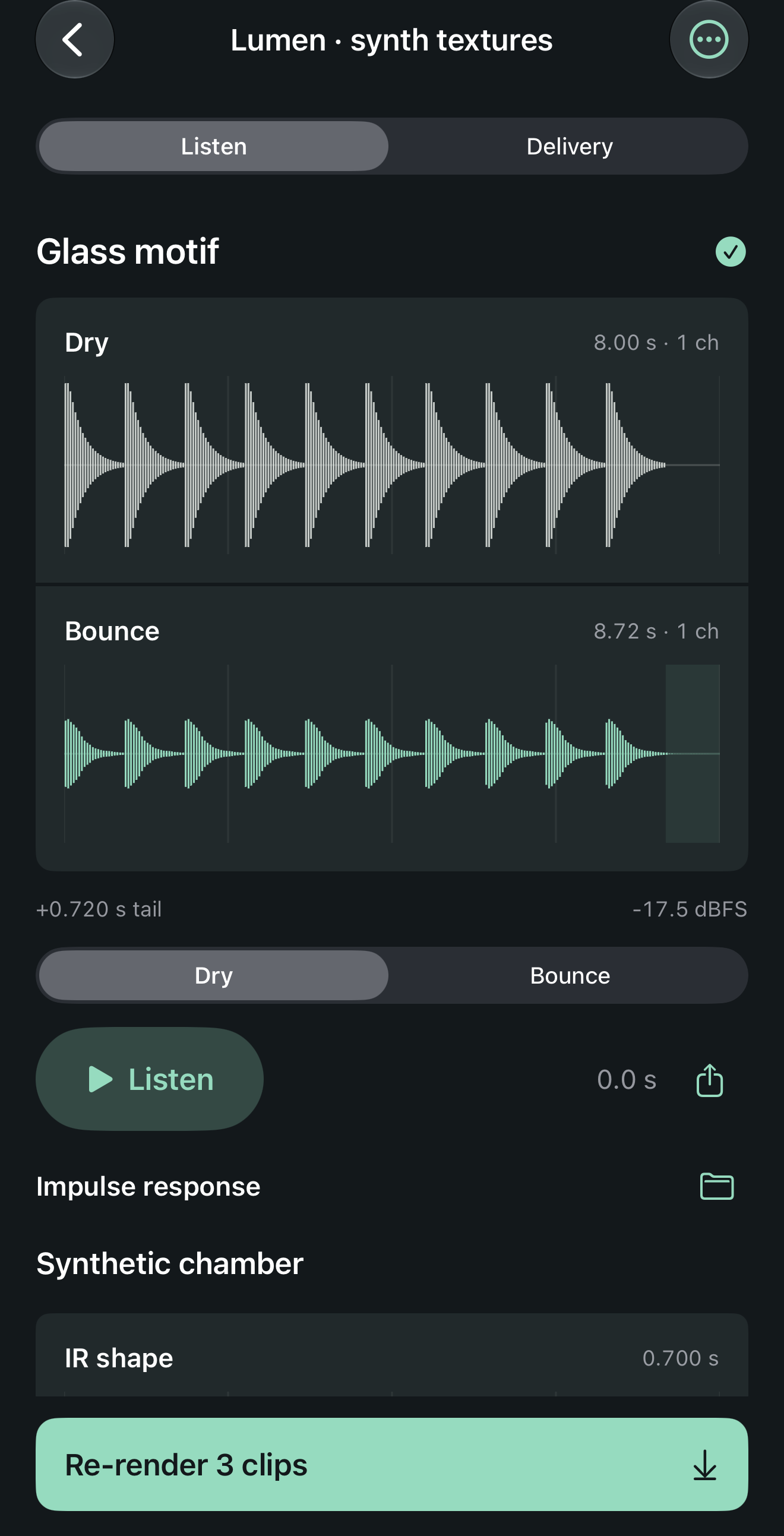
Render 48 kHz, 24-bit PCM WAVs locally. Compare dry and written-result waveforms, check duration and sample peak, and audition each file at a reduced monitor level.
Keep the result and its recipe.
Share WAVs individually or one ZIP with the bounces, CSV, settings JSON, PDF report and Readme. Preview the actual report before sharing.
Know the working limits.
- 8 saved jobs, 6 clips per job, 20 reusable mix presets.
- Source clips: up to 90 seconds and 60 MB each, 180 seconds total per job.
- Impulse response: non-silent, 0.01–2 seconds, up to 20 MB.
- Mono/stereo audio decodable by iOS, 8–96 kHz. Working copies are converted to 48 kHz float audio.
- 600 MB working library; rendering also requires free device storage.
- Wet 0–100%, pre-delay 0–250 ms, output gain −24 to 0 dB.
Mono IR filters each source channel. Stereo IR uses independent left/right processing; mono sources are duplicated for a stereo IR. Cross-channel true stereo is not supported.
IR peak normalization uses one shared scale. Outputs above −1 dBFS sample peak receive constant attenuation per file. This is not a limiter, loudness matching, true-peak measurement or mastering certification. Lower device volume before auditioning.
Veldverb processes files while active. It is not a recording app, real-time AUv3 host or plugin, room measurement tool, IR marketplace or source separation service. The optional example uses original synthetic sound and a synthetic IR; it is not a measured room.
Support
Email maga40@naver.com with your Veldverb version, device, iOS version and the step where the issue occurs. Include input format, duration and channel count when relevant. Do not send private source audio unless you choose to share it and have permission.
Getting started
Create a job. Use Sources → Import clips, then the IR folder button → Import impulse response. Adjust the mix and tap Render. Use Dry/Bounce → Listen to audition, or Delivery to preview the PDF and share files. Job actions contains presets, name/notes, Help and Clear renders.
Import errors or missing storage
Download cloud files in Files before importing. Check the format and limits above. Silent or oversized IRs are rejected. Clear old renders or delete unneeded jobs to free space. If a saved library cannot be opened, the app preserves the existing files rather than overwriting them.
Keeping your audio
Keep your originals separately. Working copies and exports do not retain original embedded metadata. Settings.json is a settings record, not an importable project backup. Export important bounces before deleting a job or uninstalling the app. Native sharing sends files only to the destination you select.
Privacy policy
Effective October 2, 2026. Gobling Company does not collect personal data through Veldverb. The app contains no developer upload service, account, advertising, analytics, tracking or third-party SDK. It does not request microphone access.
Imported audio working copies, jobs, notes, settings, presets and results are stored on your device. Convolution and report generation run locally. Render output folders are excluded from device backup; other app data may follow your device backup settings. The developer has no access to these files.
You choose files through Apple's Files picker and choose export destinations through the system share sheet. A selected cloud storage or sharing provider handles files under its own terms. Opening Support or Privacy opens a website; ordinary hosting request information may be processed by the website host. The app itself has no network processing or developer data collection.
You can delete jobs, source clips, presets and rendered output from the app. Uninstalling removes its local app container. Keep separate exports and original files before deleting. Contact maga40@naver.com for privacy questions. This policy will be updated if the app's data practices change.